Method 1: Via the cPanel Login Page
To reset your cPanel password via the login page:
- Enter your cPanel's URL in a browser.
- Within your cPanel's login page, click the Reset Password link.
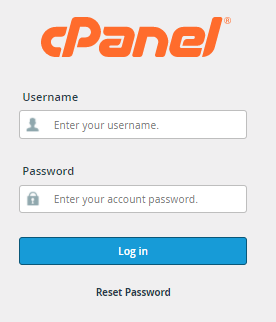
- On the next page, enter your cPanel username.
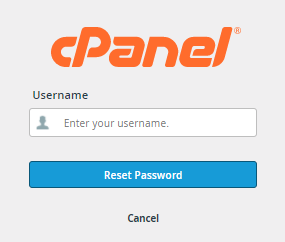
- Once done, click the Reset Password button.
- Enter your signup email address, then click the Send Security Code button.
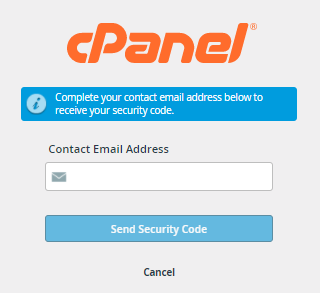
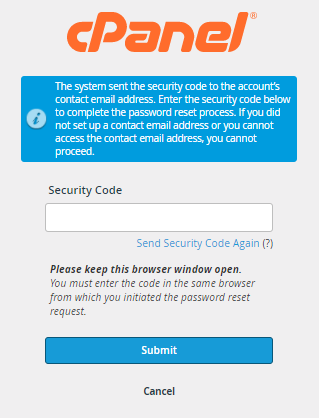
- Check your email account and take note of the security code.
- On the login page, enter your security code, then click Submit.
- Provide your new password.
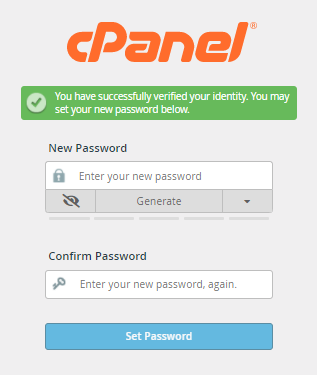
- Once you confirm your new password, click the Set Password button.
- A successful notification will be displayed on the next page. Click Log in to cPanel.
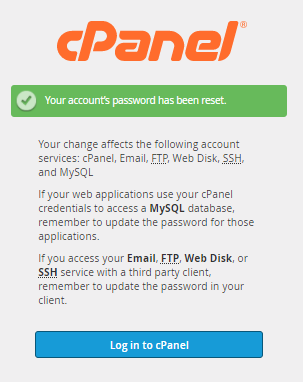
- Enter your cPanel username and new password to access your cPanel.